AI badges · Where, meaning & triggers
Badges identify issues in current content, regardless of who wrote it. Card badges summarise field issues; field badges always include a specific reason.
AI generation and validation are separate. Generating content does not automatically flag it. Resolve flagged issues before submission.
1. Project card states
Select Edit to try the corresponding fields. Card badges update with their current validation results.
2. Project Detail
Edits directly update the form value. Leave a field to run validation; generation runs validation immediately. A–D start in their labelled states on reload.
Demo simulation: short or broad titles and scopes without a concrete deliverable are flagged using local rules. Generated samples alternate between specific and broad content to demonstrate both outcomes; no AI service is called.
3. Editing · Validate on leaving the field
Try changing “AI Project” to “Build Automated Cloud Security Monitoring”, then change it back. Leave the field after each edit to update its badge and reason.
| Current field | Action | Evaluation result | Field display |
|---|---|---|---|
| Flagged by AI | Edit and leave the field, or generate / regenerate | Issue remains or a new issue is detected | Keep Flagged by AI and show the current reason below the field. |
| Issue resolved | Remove badge and reason. | ||
| No badge | Edit and leave the field, or generate / regenerate | Issue detected | Show Flagged by AI and a specific reason below the field. |
| No issue detected | Keep the field without a badge. |
Field values update directly without a separate confirmation step. Validation runs on blur or immediately after AI generation. This section belongs to a larger form with one final Submit action at the bottom. Reload or Reset examples restores A–D.
4. Component variants · Input, Textarea & Card
The reference shows four content states for the AI-assisted field component. The same badge and validation rules apply to single-line inputs and multi-line textareas.
View component variants in Figma ↗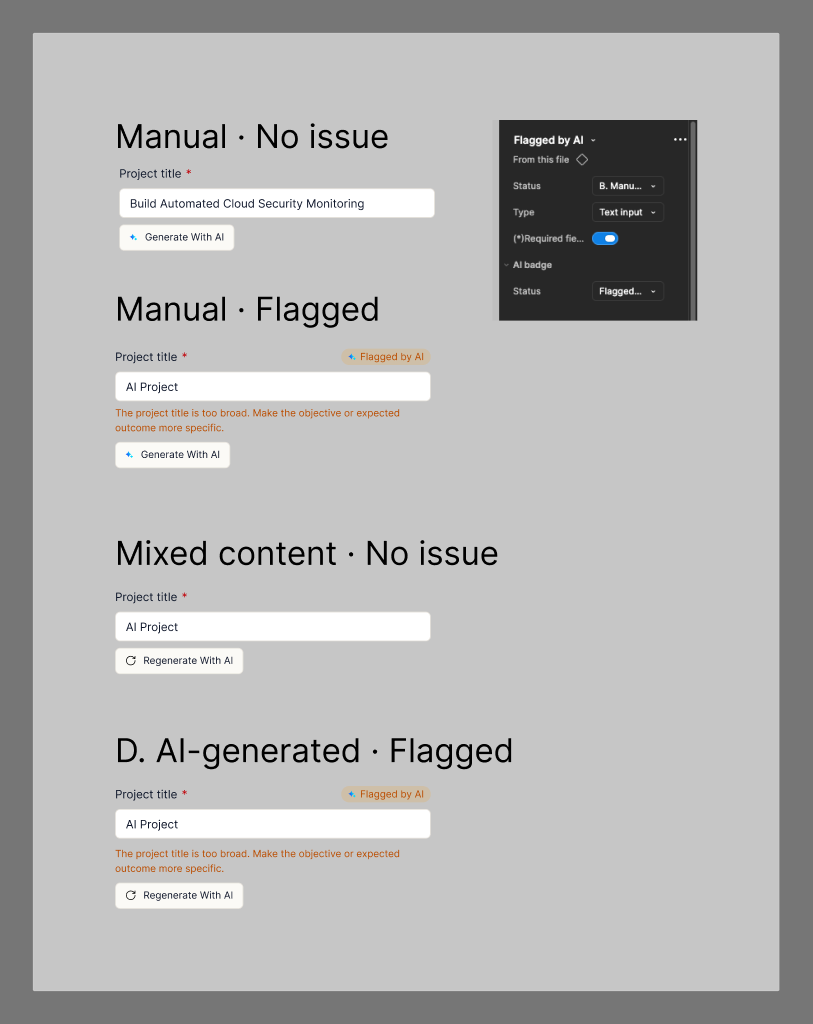
States shown in the reference
| State | Badge and message | Field action |
|---|---|---|
| Manual · No issue | Manually entered content has no current AI-detected issue. No badge or issue message. | Generate with AI |
| Manual · Flagged | Manually entered content has an AI-detected issue. Show Flagged by AI beside the label and a specific reason below the field. | Generate with AI; the user can also edit directly. |
| Mixed content · No issue | Content combines AI generation and manual changes. The current validation result is clear, so no badge or issue message is shown. “Mixed content” describes the example’s content history, not an additional validation state. | Regenerate with AI, as shown in the reference. |
| AI-generated · Flagged | The generated content has an AI-detected issue. Show Flagged by AI and an actionable reason; generation alone does not cause a flag. | Regenerate with AI; the user can also edit directly. |
Component properties and field types
| Property / variant | Usage |
|---|---|
| Status | Select the reference state to demonstrate the content and validation combination. Badge visibility depends on the validation result. |
| Type · Text input | Single-line content, such as Project Title. Example reason: “The project title is too broad. Make the objective or expected outcome more specific.” |
| Type · Long text input / Textarea | Multi-line content, such as Project Scope. Preserve paragraph breaks and place the reason below the entire textarea. Example reason: “The project scope does not describe a concrete deliverable. Add the work to be done and the expected output.” |
| Required field | The required-field property controls the red asterisk beside the label. It is independent of the AI badge. |
| AI badge | Show Flagged by AI only for a current issue, always with a field-specific reason. A clear result has no badge. |
Shared interaction: Typing directly updates the form value. Validate when the input or textarea loses focus. Generate / Regenerate replaces the content and validates immediately. Remove the badge and reason when clear; otherwise show the current reason. There are no field-level confirmation actions. The larger form has one final Submit action.
The screenshot illustrates component states; its sample text is not a validation rule. The interactive examples above use local rules to simulate checking the current content.
Card variant · Project-level summary
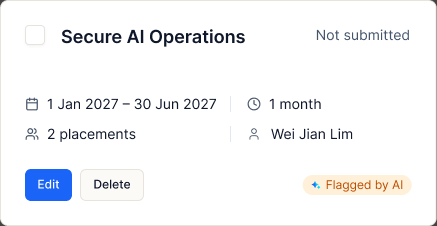
The card shows one Flagged by AI badge beside the actions when at least one relevant project field has an unresolved issue. Select Edit to see the specific reason below the affected field. When all relevant fields are clear, remove the card badge. The project’s submission status, such as Not submitted, remains separate.
Usage scenarios · AD (P&C), IO Admin and Mentor
The linked role flows identify the relevant screens and existing AI generation features. The validation applications below describe how this component can be reused; they do not imply that every screen already contains an issue badge.
| Role / scenario | Surface and component | Use of the AI component |
|---|---|---|
| AD (P&C) · Project submission list | Project cards in the request’s project list. | Use the card badge to identify projects with unresolved field issues before submission. Open the project to locate and correct the flagged content. |
| AD (P&C) · Add a project manually | Create a New Project · Project Title input and Project Scope textarea. | The reference includes generation controls for both fields. Apply the same content checks to typed and generated text; flag issues such as an unclear objective or missing deliverable. |
| AD (P&C) · Update a returned project | Edit Project · Title and Scope, alongside IO feedback. | Re-evaluate corrected content before resubmission. Keep IO feedback distinct from AI-detected issues. The reference’s IO feedback asks for personal information to be removed from the scope; this is human feedback, not evidence that AI detected it. |
| IO Admin · Edit a submitted project | Edit Project · Project Title input and Project Scope textarea. | The reference includes Generate with AI for both fields and a Flagged by AI state for Project Scope. IO Admin can review and edit generated content before saving. Reuse field validation for both typed and generated text, placing each issue message under the field it describes. Saving changes remains an explicit user action. |
| Mentor · Post-interview evaluation | AI-assisted summary · Strengths, Weaknesses, Role fit and Recommended next steps. | The reference generates a summary from candidate information, transcript and notes. Reuse the textarea pattern for editable summary content. Possible checks include statements unsupported by the supplied evidence or contradictory recommendations. These checks require access to the relevant evidence and are proposed applications. |
| Mentor · Career or scholarship recommendation | Recommendations section · Recommendation choice and supporting explanation textarea. | The Mentor selects Career, Scholarship or Not recommend, then uses Generate with AI to draft the explanation. After generation, Regenerate with AI produces another draft. The Mentor reviews and edits the text before submission; AI does not select the recommendation. Proposed validation can flag a mismatch between the selected option and the explanation, or claims unsupported by assessment evidence. |
| Mentor · Create testimonial | Create testimonial · Long-text content generated from evaluation, notes and related information. | Reuse the textarea pattern for drafting and refinement. Possible issue messages could identify unsupported achievements or unfinished placeholder text. Keep any final submission declaration separate from field validation. |
AD (P&C) scenario reference ↗ · Mentor scenario reference ↗
Across all three roles, generation produces content; validation identifies specific issues. A flag does not change the project status, make an interview or career/scholarship recommendation, or submit a testimonial. Role-flow references may contain older controls; this demo retains the current field interaction: direct editing, validation on blur, and immediate validation after generation.